
For many employers, setting up an ICHRA for the first time can feel high-stakes. What's the right allowance? Should I offer this to all of my employees? What if I configure something wrong?
The short answer: ICHRA setup on Salusion is a sequence of plan-design decisions. Each has a purpose, most have a clear default, and the platform handles compliance, documentation, and reimbursements once those decisions are made. This guide walks through each step, covers your options, and shares how other employers on the platform have configured their plans. If you'd rather watch than read, our ICHRA onboarding video covers the same process:
What Salusion Asks During ICHRA Setup
Step 1 — Enter Your Company Information
The first step asks for basic details about your business: legal name, EIN, address, and plan administrator contact information. This information serves two purposes: Salusion uses it to identify and verify your business as part of its Know Your Customer (KYC) and banking obligations (since Salusion moves funds on your behalf through its ACH reimbursement services), and to generate the legal plan documents and compliance materials associated with your ICHRA.
Have the following ready before you begin:
- Legal business name and EIN
- Business address
- Plan administrator name and email address
- Intended plan start date (you will set this in the next step)
Salusion generates your plan document and required annual employee notices automatically from this information. Once your company information is saved, Salusion will prompt you to select your plan type. Choose Individual Coverage HRA to begin the ICHRA setup flow.


Step 2 — Choose Your Plan Year Start Date
A plan year is the defined period during which your ICHRA operates: allowances accrue, expenses are incurred, and the benefit resets when a new one begins. ICHRAs must begin on the first of a month, and every plan year ends on December 31.

Step 3 — Set Up Your Employee Classes
An ICHRA is structured around classes. Each class is a group of employees you define, and each gets its own settings for eligible expenses, allowance, and dependent coverage. You can create more than one class, with each receiving a different benefit amount, as long as the classes remain distinct. For more on classes, see What Is an ICHRA Class?
When you click "+ Add Class," Salusion walks you through sub-steps for that class. Once the class is complete, you return to the classes screen and may add others.
Define Class Eligibility
Build the class by selecting from IRS-defined employee group categories. Within each group type, the options are mutually exclusive: you can select at most one employment type, at most one pay basis, and exclude at most one service-length threshold. Location and special categories can be combined freely.
Salusion Usage shows how often each characteristic appears among classes for opted-in ICHRA employees. Percentages can overlap because classes can combine characteristics; they reflect usage patterns, not recommendations.
A class can combine any of these characteristics. "Full-time employees, excluding those with fewer than 90 days of service" is a valid class, or "full-time salaried employees in a specific state."
Keep in mind that employees need individual health insurance or Medicare to participate in an ICHRA; employees covered under a spouse's group plan are not eligible.
Choose Eligible Expenses
Set which expenses employees in this class can submit for reimbursement. Salusion offers two options:
- Premiums only: Employees can submit individual health insurance or Medicare premiums. Out-of-pocket medical expenses are not covered.
- Premiums and out-of-pocket medical: Employees can submit premiums and any eligible medical expense, including deductibles, copays, coinsurance, and prescriptions.
Among classes for opted-in ICHRA employees, 61.2% use a premiums-only design and 38.5% include premiums and out-of-pocket medical expenses.
Set the Allowance
How allowances work
The monthly allowance is the amount you make available to each employee in this class each month. Allowances accrue monthly, and for premium reimbursements, the upcoming month's allowance becomes available on the 12th of the preceding month. Unused balances carry forward within the plan year, meaning an employee's total available balance grows as each month's contribution is added.
When an employee submits an eligible expense, Salusion reimburses up to the amount accrued at that point. If an employee has a $400 monthly allowance and submits a $1,000 expense in February, they have $800 available (January and February combined). Salusion would reimburse $800, and process the remaining $200 automatically when March's allowance becomes available.
Any balance remaining at the end of the plan year is not carried into the following year. Employees have a 75-day runout period after the plan year ends to submit expenses incurred during that year. For a full explanation of how allowances accrue and expire, see our ICHRA mechanics guide.
How Salusion funds reimbursements
Salusion doesn't pull the full annual allowance from your bank account upfront. Funds are only drawn when an approved reimbursement is actually being paid, so your cash outflow tracks with employees' actual healthcare spending rather than a fixed annual schedule.
Choosing your allowance structure
Salusion offers two approaches to setting the allowance.
Employer-set allowances (97.9% of ICHRAs on the platform): You decide the monthly amount. That amount can be the same for everyone in the class or vary based on employee characteristics.
For a more detailed breakdown on how employers on the platform set their allowance amounts, check out our ICHRA allowance benchmark data.
Salusion-calculated allowances (2.1% of ICHRAs on the platform): For employers who want the allowance to adjust automatically based on employee location and age, Salusion can accomplish through one of two methods:
- Benchmark to a metal tier: Estimates the local individual-market premium for a Bronze, Silver, or Gold plan based on each employee's ZIP code and age, then funds a chosen percentage of that amount. Among employers using this method, Silver is the most common benchmark (40%), followed by Bronze (35%) and Gold (25%).
- Lowest-cost ACA-compliant: Calculates the minimum allowance needed to make the offer affordable under the applicable ACA safe harbor. This option is most relevant for larger employers subject to ACA affordability requirements. Selecting it automatically limits the class to employee-only coverage.
While you can adjust your allowance amount at any time, changes are best made at renewal to avoid administrative complexity mid-year.
Once the allowance is set, you will also choose whether the benefit extends to the employee's family or covers the employee alone. If you selected Lowest-cost ACA-compliant as the allowance method, that choice is made for you: coverage is automatically set to employee only.


Step 4 — Choose Your Reimbursement Method
Once an expense is approved, Salusion offers two methods for getting funds to your employees.
- ACH direct deposit (automated by Salusion): After Salusion reviews and approves an expense (typically the same day it is submitted), the reimbursement is processed according to the employer's selected ACH schedule. Employers can choose processing as expenses get approved or scheduled processing on the 5th and 22nd. For premium reimbursements, the upcoming month's ICHRA allowance becomes available on the 12th of the preceding month, allowing an approved premium reimbursement to begin processing before the coverage month starts. Funds generally reach employees about five business days after processing.
- Employer reimburses directly: Salusion provides reimbursement reports showing what each employee is owed, and the employer handles payments outside the platform. Employers can choose to receive one report each month or reports twice monthly on the 1st and 16th. Approval records remain in Salusion regardless of which reimbursement method is used.
Beyond convenience, there's a compliance reason most employers choose ACH when it's available. Processing reimbursements through Salusion maintains a direct connection between the expense submitted, the approval, and the payment. The platform reconciles what was submitted, approved, and reimbursed, creating an audit trail that documents the full chain.


Step 5 — Set Up Your Reimbursement Account
This step asks for the bank account Salusion will use to fund employee reimbursements and charge its administrative fees. If you'd prefer to use a separate account for Salusion's fees, you can designate a different payment method at this step.
If your bank uses Positive Pay, ACH filters, or account verification, you will need to authorize Salusion's ACH Company IDs before completing setup to avoid rejected transactions. Salusion uses two separate IDs:
- Reimbursement funding: ACH Company ID 2844032944
- Billing: ACH Company ID 1844032944
If you're unsure whether your account has ACH restrictions in place, check with your bank before completing this step.
Step 6 — Review and Sign Your Agreements
Before your plan becomes operational, you must review and accept three documents: the Administrative Services Agreement, the ACH Authorization Agreement, and Exhibit B (Salusion's fee schedule). To complete this step, you'll confirm that you're an authorized signatory for your company and that your business does not operate in a restricted industry. If you're not the authorized signatory, Salusion provides an option to route the documents to the appropriate person.
The Administrative Services Agreement isn't a long-term contract. Because HRAs can be modified or terminated by the employer at any time, the agreement is structured to accommodate that flexibility. For most employers, Salusion's services are month-to-month.
Once this step is complete, your plan is configured and active.
Step 7 — Add and Onboard Your Employees
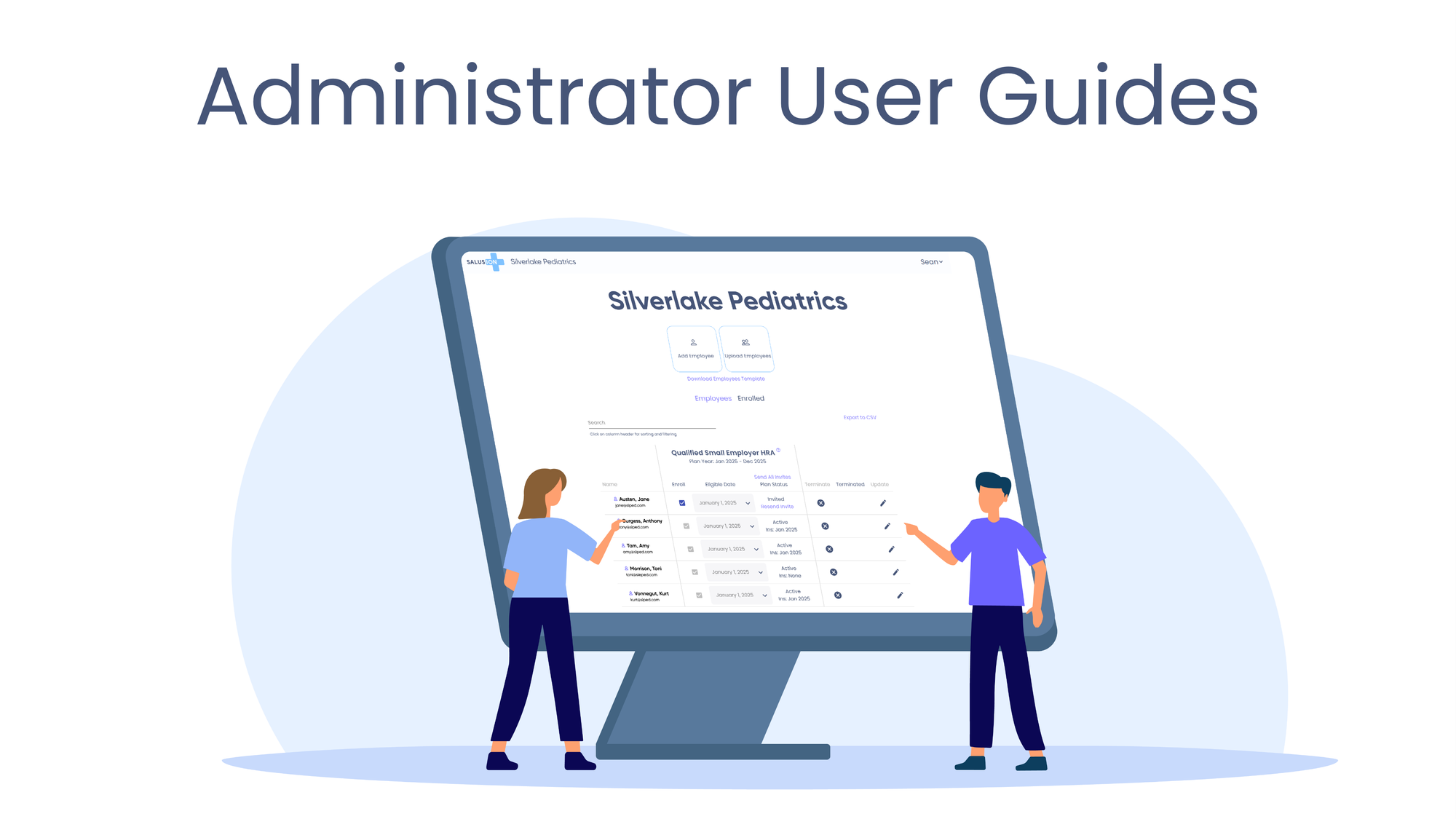
The final step is adding your employees. You can add them one at a time, or upload them in bulk using the provided template. For each employee, you set an eligibility date, mark them as enrolled, and send an invitation.
Once an invitation is sent, Salusion automatically:
- Creates the employee's account
- Sends all IRS-required plan documents and notices
- Collects proof of insurance (and connects uninsured employees to individual health insurance options if they don't have coverage)
- Collects bank account information for ACH transfers (if enabled)
- Reviews and approves submitted expenses on an ongoing basis
When an employee leaves the company, ending their enrollment is a single action in the platform. No further action related to that employee's enrollment is required.
Frequently Asked Questions
Can I start an ICHRA mid-year?
Yes. An ICHRA can begin on the first of any month. All ICHRA plan years end on December 31.
Can I offer an ICHRA to some employees but not others?
Yes. An ICHRA lets you create separate classes (such as full-time and part-time) and offer different benefit amounts to each. You can also offer an ICHRA to one class and no benefit to another, as long as the classes use IRS-permitted categories and are clearly distinct.
How does an ICHRA affect employees' premium tax credits?
It depends on whether your ICHRA is considered affordable under IRS rules. If the ICHRA is affordable, employees are ineligible for premium tax credits regardless of whether they participate. If the ICHRA is not affordable, employees can opt out and claim premium tax credits on the individual market instead; employees who take an unaffordable ICHRA give up those credits. For a full explanation of how affordability is calculated, see How ICHRAs Affect Premium Tax Credits.
Does an ICHRA have annual contribution limits?
No. You set the monthly allowance based on your benefits budget, with no IRS cap on the amount.
Can I change my ICHRA allowance after the plan year starts?
Employers can generally modify their ICHRA settings at any time. Plan design changes are typically applied across the entire plan year rather than from the date the change is made, which can create administrative complexity. For that reason, most changes are made at renewal. If you need to make a mid-year change, Salusion's support team can walk you through the implications before you proceed.
Do I need to connect Salusion to my payroll software?
No. Salusion processes reimbursements via ACH as a standalone process, and tax reporting for an ICHRA is handled separately from payroll.
What if an employee does not have individual health insurance when I launch the plan?
Employees need individual health insurance or Medicare to participate in an ICHRA, so they cannot submit expenses until they obtain qualifying coverage. Salusion can connect uninsured employees with individual health insurance options directly through the platform so they can get covered and start using the benefit.
Start Your ICHRA Today
Every step in the Salusion ICHRA setup workflow has a clear purpose. Understanding the logic behind each step makes the choices faster and easier, and the platform handles compliance, documentation, and reimbursements from there.
Start Your Company's ICHRA with Salusion