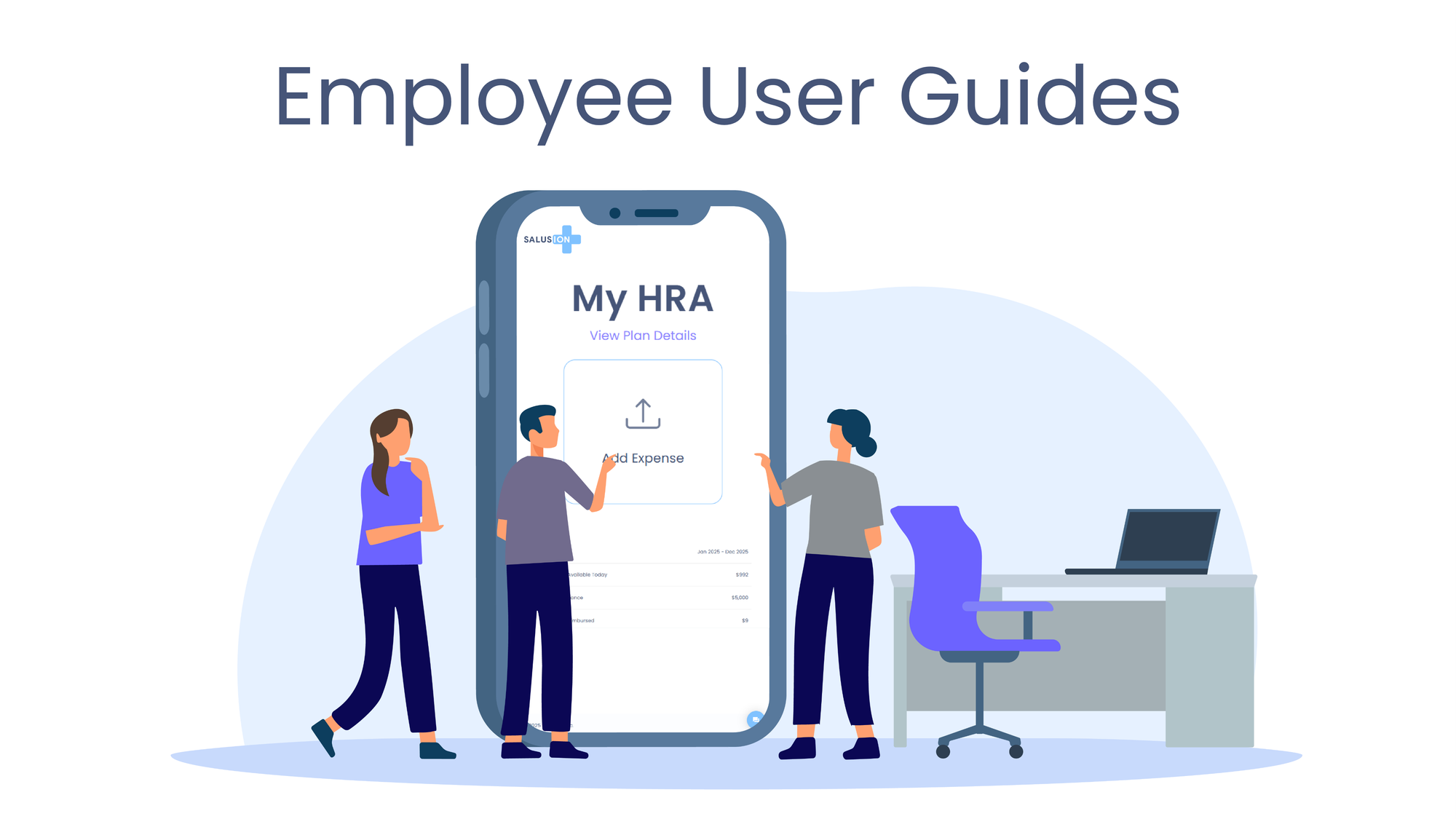

- Click Add Your Receipt
- Describe the expense
- Click Submit for Approval

Insurance Premium Expenses
If you mark an expense as an insurance premium, keep the following in mind:
- Enter the full monthly premium amount before any tax credits or subsidies
- Make sure the coverage month matches the receipt (a common reason premiums are denied is a mismatch between the coverage month and the documentation provided)
Text-to-Confirm (If Enabled by Your Employer)
Some employers allow Text-to-Confirm for insurance premiums. If this option is available and you enroll:
- You’ll receive a monthly text asking you to confirm that the premium was paid
- Replying “Yes” automatically creates the expense for that month
- We periodically verify that your insurance coverage is still active

Submitting Expenses by Phone
You can also submit expenses using the Salusion mobile app. Links to the mobile apps are below:

After You Submit
Once submitted, your expense will appear under Expense Status, where you can:
- Track approval status
- See your reimbursement amount
- View your expected reimbursement date

Eligible Expenses
For a full list of expenses that may be reimbursed, see:
[Eligible Expenses Guide] (link)